Moving from Excel to gym software: a practical guide
From cleaning your member list to opening balances, a step-by-step guide to moving from Excel to gym software: which columns you need, what happens to bad rows and how existing memberships move over.
· 6 min read
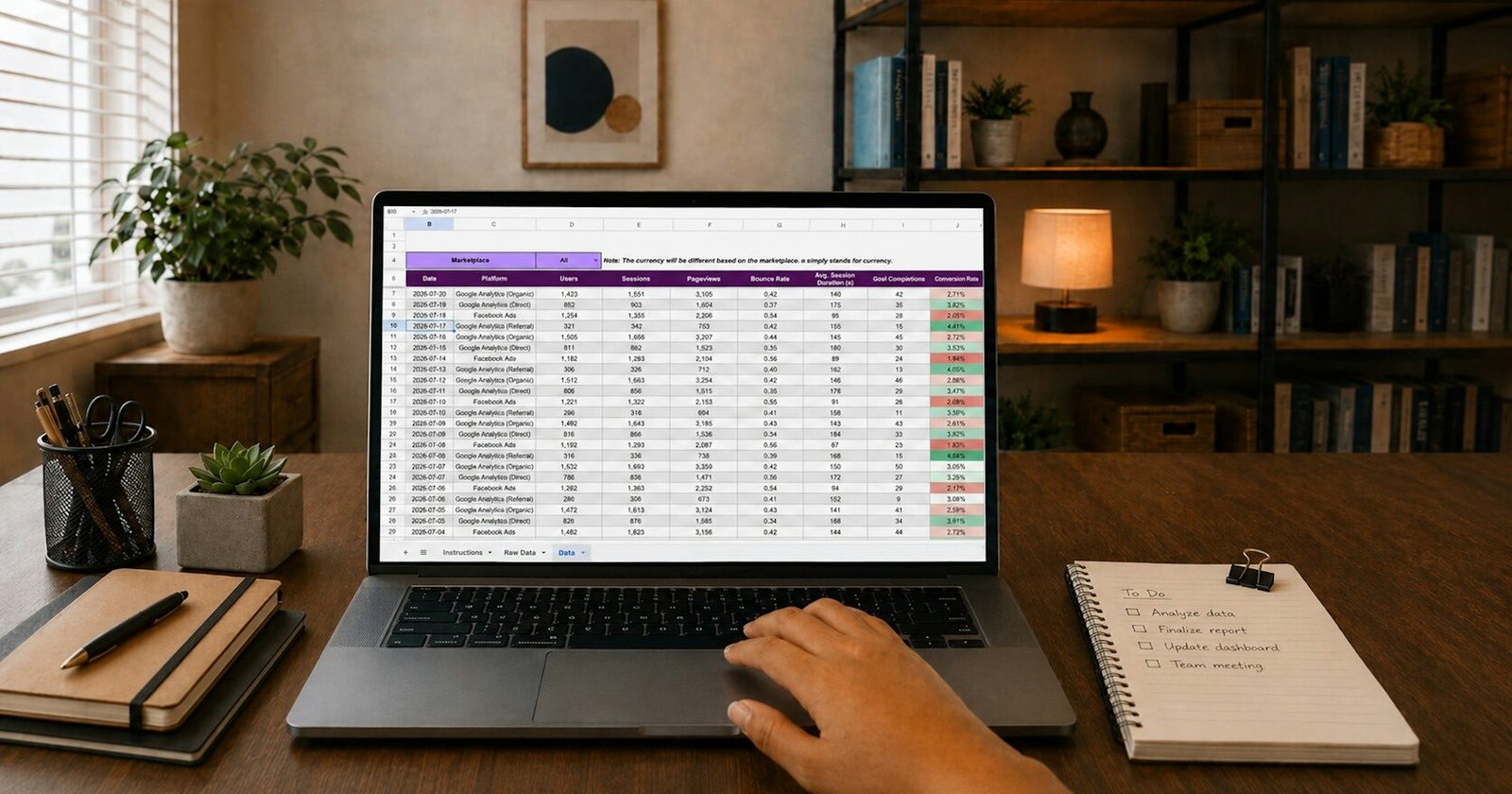
Excel isn't a bad tool. Plenty of gyms have kept member lists, end dates and balances in a spreadsheet for years and it did the job. The trouble is that a spreadsheet never tells anyone anything. If nobody notices an expired membership, that member keeps walking in; if nobody calls about a late installment, the debt grows. Moving from Excel to gym software means handing the "if nobody notices" part to the system.
The move itself is shorter than people fear. Most of the work is cleaning the list before you import it. The steps below follow GamGym's import screen, but the logic applies to any system.
1. Clean the list
Your file decides the quality of the import. Check three things.
Phone numbers. In GamGym one phone number is one person, and a gym can't have two member records with the same phone. If the same person appears twice ("Mehmet Yılmaz" and "M. Yılmaz", same number), the second row will fail. Merge them before importing. Put the numbers in one format too; a column where some rows start with 0 and others with +90 makes debugging harder.
Former members. You don't have to move 400 people who stopped coming three years ago. For most gyms, active members plus those whose membership ended in the last year is enough. Keep the old file as an archive.
Dates. Write start and end dates in one format. A column that mixes "01.03.2026" and "1 March" will cause trouble. The test import will show whether dates are read correctly.
2. Name the columns
The import screen recognizes Turkish and English column names. For personal details:
- first name, last name, phone, e-mail (ad, soyad, telefon, e-posta)
- date of birth, gender (dogum_tarihi, cinsiyet)
- notes, tags (notlar, etiketler)
Tags pay off later. With tags like "mornings", "student" or "corporate" you can filter members when sending notifications or running reports.
3. Takeover columns: memberships and balances
You can bring active memberships from the old system in the same file, using extra columns:
- paket: the name of a plan you've already defined in GamGym
- baslangic and bitis: the membership's start and end dates
- kalan_giris: visits left on visit-based plans
- bakiye: the opening balance; a positive number is money the member owes, a negative number is credit
Using these columns needs a separate staff permission, so not every receptionist can upload balances in bulk. A takeover membership doesn't count as a sale, so it doesn't inflate your collections report, and the balance is booked to the member's account as an opening entry.
For the odd member who isn't in the file, the member record has "Takeover from previous system" and "Opening balance" dialogs, so you can move one person by hand.
4. Save as CSV
The import screen doesn't read .xlsx files directly. In Excel, use "Save As" and choose CSV; pick "CSV UTF-8" so Turkish characters survive. The file can be up to 5 MB and 5,000 rows. Split a bigger list into two.
5. Try 20 rows first
Don't upload the whole list on the first go. Make a 20-row file and include a deliberately broken row, such as a bad date or a repeated phone number. Import it and look at the result. The import runs row by row: a row with an error is skipped, the rest go in, and the failed rows are listed with their reasons.
The screen also has an option to send members a welcome message. Leave it off for the test. Sending a welcome with the wrong dates to 20 people is worse than sending nothing.
6. Pick a cut-over day
Choose a cut-over day and stop adding records to Excel after it. The first of the month is usually a bad choice, because renewals and installments pile up on it. A quiet weekday is better. During the switch, don't let the desk write in two places; two lists never match after a week.
In the first week, check member records: days left, balances, frozen memberships. Fix the failed rows and upload them in a second file.
At the end of the first month, look at two lists. One is members whose plans are about to end; in Excel someone had to filter that every week, and now it sits on the dashboard. The other is members who owe money: debts brought in as opening balances and installments created after the move show up on the same receivables screen. If both lists are right, the move is done.
You can leave, too
When you move to any system, ask how you'd get out. In GamGym you can export the member list with the current filter as a CSV that opens in Excel. Knowing your data stays yours makes the decision to switch easier.
Help
Remote setup and data migration are free with GamGym: we can go through your file with you and import it. You can apply on the for gyms page, and Excel versus gym software is compared topic by topic on the Why GamGym page. If you haven't chosen a system yet, start with 10 things to check when choosing gym software. After the move you can keep an eye on member churn from the dashboard, where members whose plans are about to end are now listed automatically.
Once it's cleaned, a typical 300-member list goes in as a single file, far below the 5,000-row limit.
Terms in this article
Frequently asked questions
Can I upload my Excel file directly?
No, save it as CSV first; .xlsx files aren't read directly. The file can be up to 5 MB and 5,000 rows.
What happens if the same phone number appears twice?
A gym can't have two member records with the same phone, so that row fails; the other rows are imported and failed rows are listed with their reasons.
Do you help with data migration?
Yes. Remote setup and data migration are free; we can go through your file with you and import it.