How to build a gym website from your panel, step by step
A gym site with its own menu, colours and footer, plus plans, classes, extra pages, online sales and a trial form. The steps to build your gym website from the panel.
· 8 min read
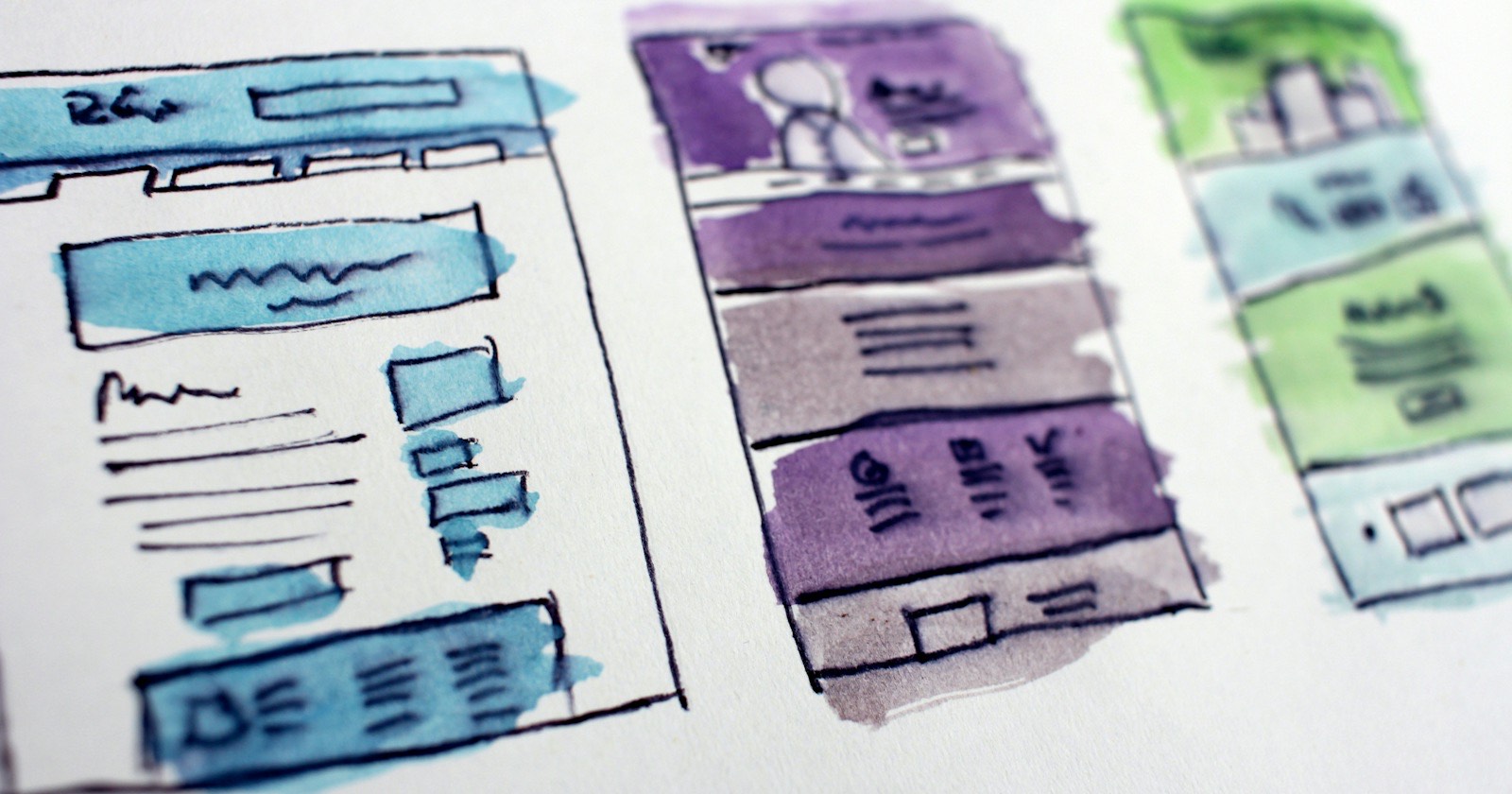
You don't need an agency or a separate site builder to build a gym website. In GamGym your gym's page fills itself from what you enter in the panel and looks like a small site with your own menu, colours and footer. This article covers building it step by step, adding extra pages and the parts that turn a visitor into a member.
How you show up in search engines and the gym directory is covered in a separate article, showing up on Google and in the directory. Here we focus on the site itself.
Gym page and gym site
Every gym has a public page at gamgym.com/en/gym/your-gym-name (gamgym.com/salon/... in Turkish), free on every plan. The gym site means that this page and your gym's other pages (branch pages, pages you build with the page builder, and the blog and shop if you have them) are drawn with your own header instead of the GamGym menu:
- At the top, your logo, your gym's name, your own menu and a "Member login" button.
- At the bottom, your contact details, branches with today's opening hours, your pages and your blog.
- A colour you pick from the ready-made palettes, applied only to your gym's area.
A thin GamGym strip stays at the very top and a "Made with GamGym" line at the very bottom. The site is published at GamGym's address; connecting your own domain isn't available today. If you own a domain, you can forward it to your gym page.
Step 1: The basics
Most of the site comes from information you've already entered in the panel. Start by completing it:
- Logo, cover image and a short about text.
- Branches: address, phone, opening hours, amenities (parking, showers, sauna and so on), women-only hours or areas.
- Gallery: the weights area, the studio, the changing room and the entrance. Real photos rather than a wide-angle shot of an empty gym.
Opening hours matter more than they look, because the "open now" label on the page and today's hours in the footer are calculated from them. Remember to update them for holidays or a refurbishment week.
Step 2: Menu and colours
In the panel, next to Site pages, there's a Gym menu tab. If you never edit the menu, the system builds one: home, the sections open to visitors (plans, classes, trainers, shop, reviews), the blog if it's on, your published pages and contact.
If you edit it yourself, you can have up to 12 items on a single level. Each item goes to one of three places: a section of your gym page, one of your own pages, or an external address starting with https (your Instagram account, for example). A section you've hidden, or one with no content, isn't drawn in the menu, so there are no links to empty pages. The colour palette is chosen in the gym settings.
Step 3: Extra pages
Plans and classes are listed on the gym page automatically. Some things need their own page, though: what happens on a first visit, how women-only hours work, corporate memberships, a campaign. For these you use the page builder under Panel › Site pages.
A page is made of blocks. The ones you can use:
- Text, image, YouTube video, table, quote.
- Steps and feature cards, frequently asked questions.
- A call-to-action box (a button and a link).
- Live listings of your plans, classes and trainers that update when you change them in the panel.
- A trial request button and a contact form.
There are two layouts: an article layout for pages people read, and full width for visual pages. You can keep a page as a draft, preview it and schedule it for a later date. Gym pages have no custom code block; that's a deliberate choice so pages don't break and visitors stay safe.
Step 4: Plans and classes
The membership plans you have on sale appear on the gym page with their prices. If you'd rather not show prices, you can hide the plans section. If your GamGym plan includes classes and PT (Professional and Chain), your weekly group class schedule and trainers appear too. When you change the schedule in the panel, there's nothing else to update on the site.
Step 5: Online sales
You can open any of your plans for online sale; this is in every gym plan. The visitor picks a plan, signs in with their phone number and signs the documents the gym requires (contract, health questionnaire) on screen. The membership is created as "pending".
Payment today is at the gym or by bank transfer; online card payment isn't available yet. Unpaid orders cancel themselves after 3 days. Memberships sold online also come with the 14-day right of withdrawal. The full flow is in online membership sales.
Step 6: Trial request and contact form
Not everyone buys on the first night. A trial request on the gym page needs only a name, phone number and data protection consent; it lands on your lead board as "new" with today as the follow-up date. If there's already an open lead with the same phone number, that one is updated instead of a new one being created.
A contact form added with the page builder also creates a lead, and the record shows which channel the visitor came from (search, social, campaign). That way you can see whether the Instagram ad or Google search is bringing in leads. What happens after a trial class is booked is covered in gym member tracking software.
The gym blog
Your gym can also have a blog at /en/gym/your-gym-name/blog. You switch it on from the strip at the top of the Site pages screen; it only shows if your gym is listed in the directory. Once it's on, it appears in the system-built menu automatically; if you've edited the menu yourself, you add the Blog item. If you can't publish at least one post a month, don't open it; a blog whose last post is from last year doesn't look good.
Basic SEO settings
In the SEO settings under Site pages you can enter a title, description and share image for your gym's home page; anything you leave empty is filled from your gym's name, location and about text. If the site isn't ready yet, the "hide from search engines" option keeps all your gym pages out of search results.
Use your neighbourhood in the title: "Women-only pilates studio in Kadıköy" says more than "welcome to our gym". Structured data, the sitemap and notifying search engines need nothing from you; how they work is in showing up on Google and in the directory.
Example: a 250-member studio's site
Picture a women-only pilates and fitness studio in Kadıköy with 250 members. Its menu has six items: Home, Plans, Classes, Trainers, a "Your first visit" page and Contact. The "Your first visit" page has a three-step explanation, a five-question FAQ, a trial request button and a live list of plans at the bottom. The monthly and three-month plans are on sale online; the yearly plan is sold only at the gym. The home page title carries the neighbourhood and "women-only". With the information ready, building this site takes an afternoon.
Common mistakes
- Not entering opening hours. The first thing visitors check is whether you're open right now.
- Putting everything in the menu. Six or seven items is enough; link the rest from inside pages.
- Opening a plan for online sale without a contract text. If the signing step is empty, the sale stalls.
- Not deciding who handles trial requests. A request on the lead board goes cold if nobody calls the next day.
Where the site fits in the wider system is in gym management system, and what to look for in software is in how to choose gym software.
Starting a trial
The gym page and gym site are free on every plan, and the free trial is 3 months on Starter. The application form is on the for gyms page; on the day your account opens, upload your logo and enter your branch hours, and your page is live from then on.
Terms in this article
Frequently asked questions
Can I publish the gym site on my own domain?
Not today. The site is published at gamgym.com/en/gym/your-gym-name (gamgym.com/salon/... in Turkish), and you can forward your own domain to that address.
Is there a separate fee for the gym website?
No. The gym page, gym site, page builder and gym blog are free on every gym plan and aren't tied to a plan feature.
How is payment taken for memberships sold on the site?
The membership is created as pending and paid at the gym or by bank transfer. Online card payment isn't available yet, and unpaid orders cancel after 3 days.